How to Choose Photo Culling Software Without Doing the Job Twice 📸💻
You buy photo culling software with one modest ambition: finish work before everybody at home goes to bed. You load a wedding, start the AI and go to reheat dinner. Back at your monitor with a plate, you briefly feel like somebody who has their schedule under control.
Almost.
The selection contains three identical kisses. You have to search the rejects for the hug you wanted. Then you transfer everything to Lightroom and discover that some ratings are missing.
Dinner is cold again.
At this point, there is one obvious question: why the h*ll did you pay to do the same job twice?
To avoid finding out after buying, test the application on your own shoot. Not five attractive portraits from a promotional video. Real sequences, difficult groups and files you will actually need to edit.
1. Automated or assisted photo culling: which do you need?
Think about where you usually get stuck. Sometimes it is starting: you open thousands of photographs from two cameras and realise you will be working late again. An automated initial selection that you can review is worth trying here.
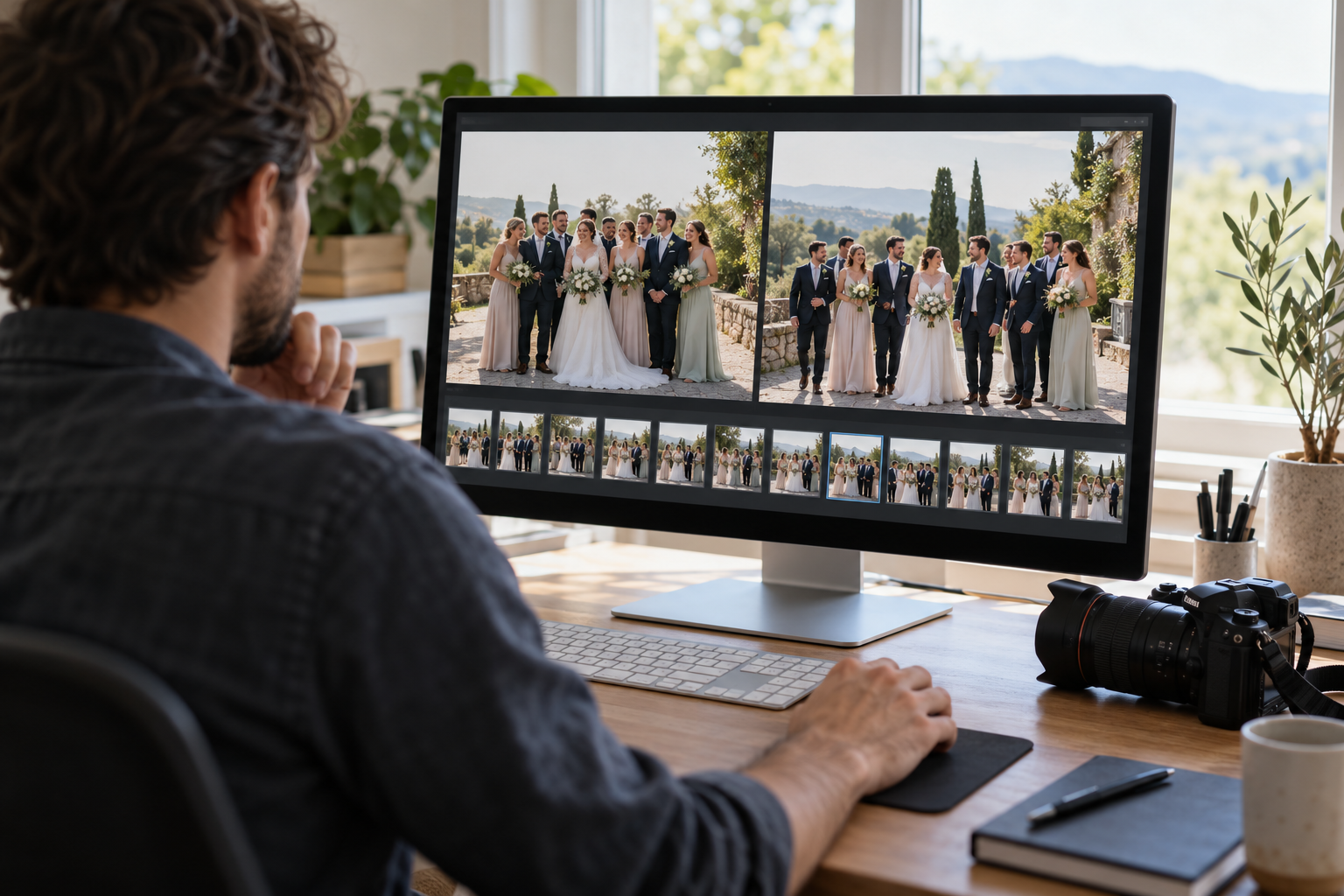
Sometimes your first pass is quick. The time goes elsewhere: choosing one photograph from twelve where the bride turns her head, her veil covers a cheek, the groom adjusts his hand, and eventually both look natural.
In that case, convenient comparison of neighbouring frames matters more.
Aftershoot, for example, offers automated and assisted modes. The first makes an initial selection. The second groups similar photographs and helps you choose yourself.
But the mode’s name does not settle the decision. Open a sequence, inspect rejected alternatives, restore one to the selection and change its rating. If this already feels awkward, imagine doing it after a ten-hour shoot.
Better to find out now.
2. Face and focus review: test a difficult group photograph
The promotional portrait has one model. She is well lit, looking at the camera and in no hurry.
Your group photograph has twelve guests. One leans towards a child, another looks at the waiter, and a third blinks precisely when everybody else finally stops talking.
That is the material you need for a useful test.
Check how easily you can inspect every face at 100%, compare the neighbouring frame and return to the full composition. Can you quickly check the back row, rather than just the large faces at the front?
Narrative provides face assessments and a close-ups panel. These help draw attention to potential problems. You still need to understand the indicators and inspect the expressions yourself.
Closed eyes during a kiss can be entirely appropriate. Closed eyes across half a family group call for another frame.
You need an application that helps you make those decisions faster. Coloured badges alone are not enough.
3. Transfer to Lightroom: check ratings, labels and files
One of the most frustrating checks happens after culling. You have finished selecting in one application, but your editor makes it difficult to establish which photographs you kept or why more files appeared than expected.
Test the transfer before paying.
Duplicate a small sample folder. If you work with catalogues, use a test catalogue. Select several photographs and assign different ratings and colour labels. Transfer the result to the editor and version you actually use.
Compare the selected files. Check stars and labels. Establish whether supporting metadata files are required and how to keep them.
Narrative, for example, documents storing ratings in XMP files beside the photographs. Transfer only the images and lose those files, and you can lose the ratings too. Another application may use a different procedure.
One more useful check: change your mind about a photograph after the transfer. Work out how to update the selection without importing the whole shoot again.
With a small folder, this is an ordinary test. With a client wedding and a looming deadline, it stops being funny.
4. Photo culling speed: measure the whole workflow
An application may finish its automated pass quickly. If you then spend ages finding missed photographs and correcting selections, the time saving remains unproven.
Record loading, processing, human review, corrections and transfer to your editor. Compare the total with your normal culling workflow. Use the same set of photographs, or the comparison will tell you very little.
Before buying, check computer, storage and internet requirements. Read the plan terms: included features, restrictions and what happens to access to your results after cancellation.
For client photographs, separately establish what is uploaded to a server and how the service handles that data. An application installed on your computer does not necessarily perform every operation locally.
The boring part?
Yes. But reading the terms once is preferable to discovering restrictions halfway through a paid job.
Photo culling software buying checklist ✅
Before paying, check five things:
- Can you quickly compare alternatives and restore rejected photographs?
- Can you comfortably inspect every face in group photographs?
- Are the required ratings and labels preserved in your editor?
- Does total working time decrease once corrections are included?
- Do the plan, hardware requirements and file-processing terms suit you?
Choose a small shoot you have permission to test. Follow the complete process from import to the start of editing.
Buy when you understand which work the application genuinely takes off your hands. You already have cold dinners at the monitor without adding another subscription.